
Messaging Lists - Create a List for Officers
It only takes a few steps to create a new Messaging List for Officers - a powerful way to communicate with Officers in your church or conference by email and text messaging.
1. Create the list
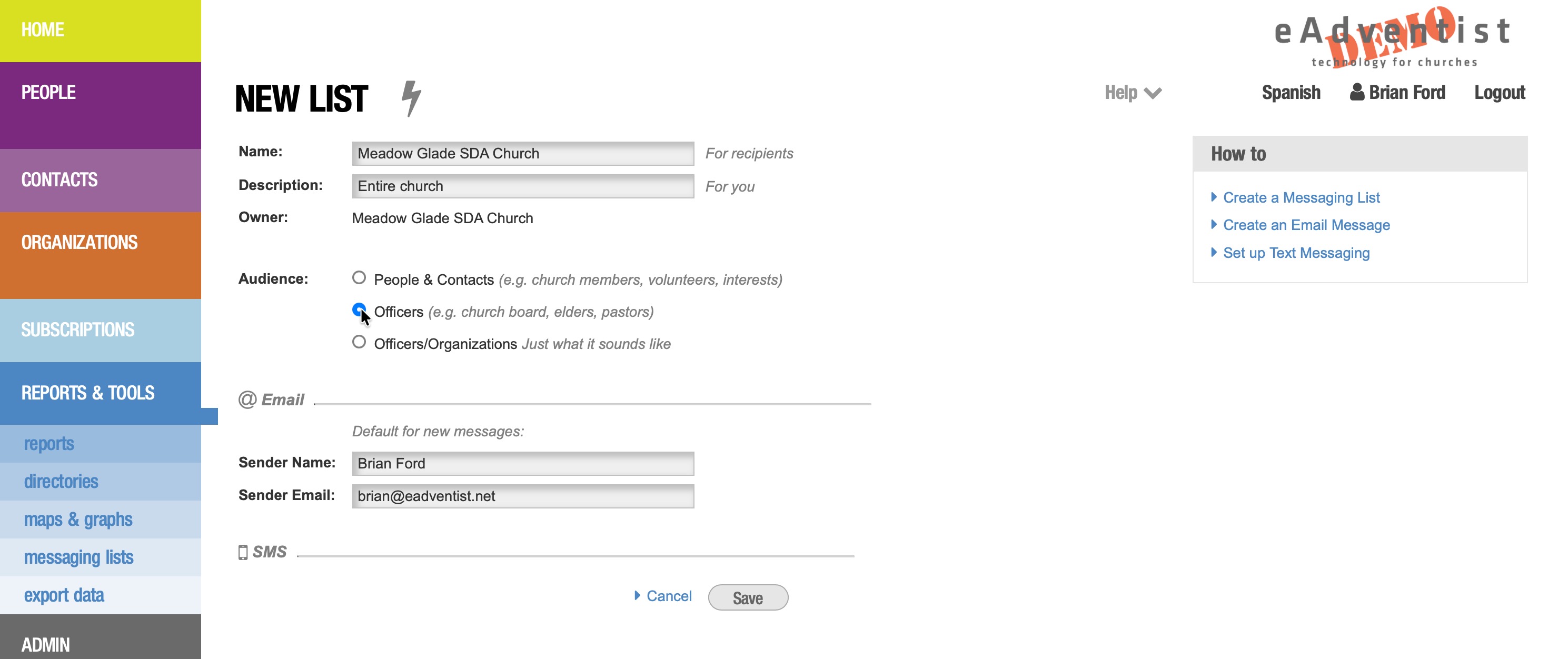
Choose the "messaging lists" menu option (under the "Reports & Tools" menu section). On the Messaging Lists page, click the "New list" button.

If your eAdventist account has access to more than one church, you will need to choose from them.

For the "Audience", choose "Officers" for a list that can send to selected Offices in your church or conference.
The From name and From email are required. Each time you create an email Message, you have the option to use these defaults or enter a different name and email.
2. Select the offices
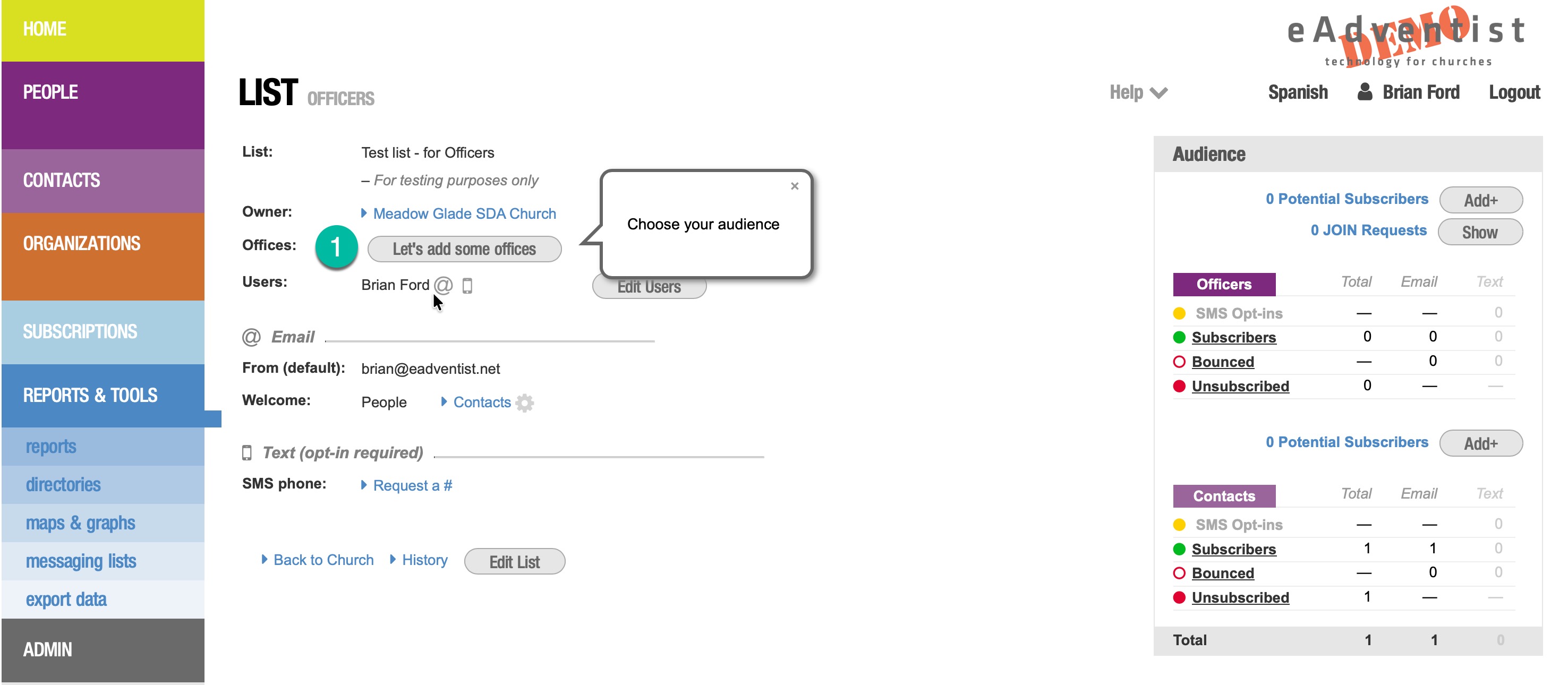
Choose which Offices will be able to subscribe to the List (e.g. board member). Click the "Let's add some offices" button to get started.
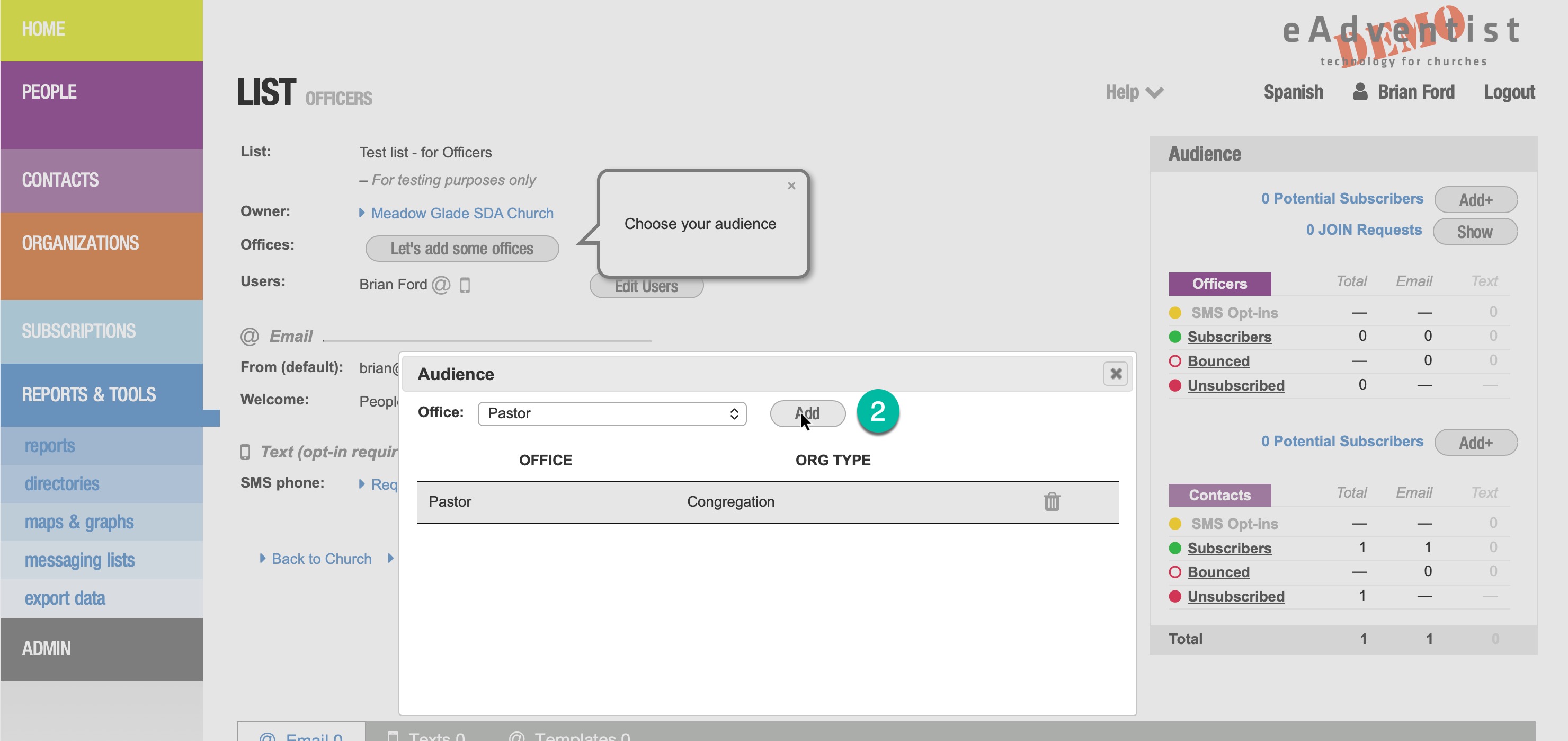
Add one or more Offices by selecting from the "Office" drop-down and clicking the "Add" button.
3. Grow your audience
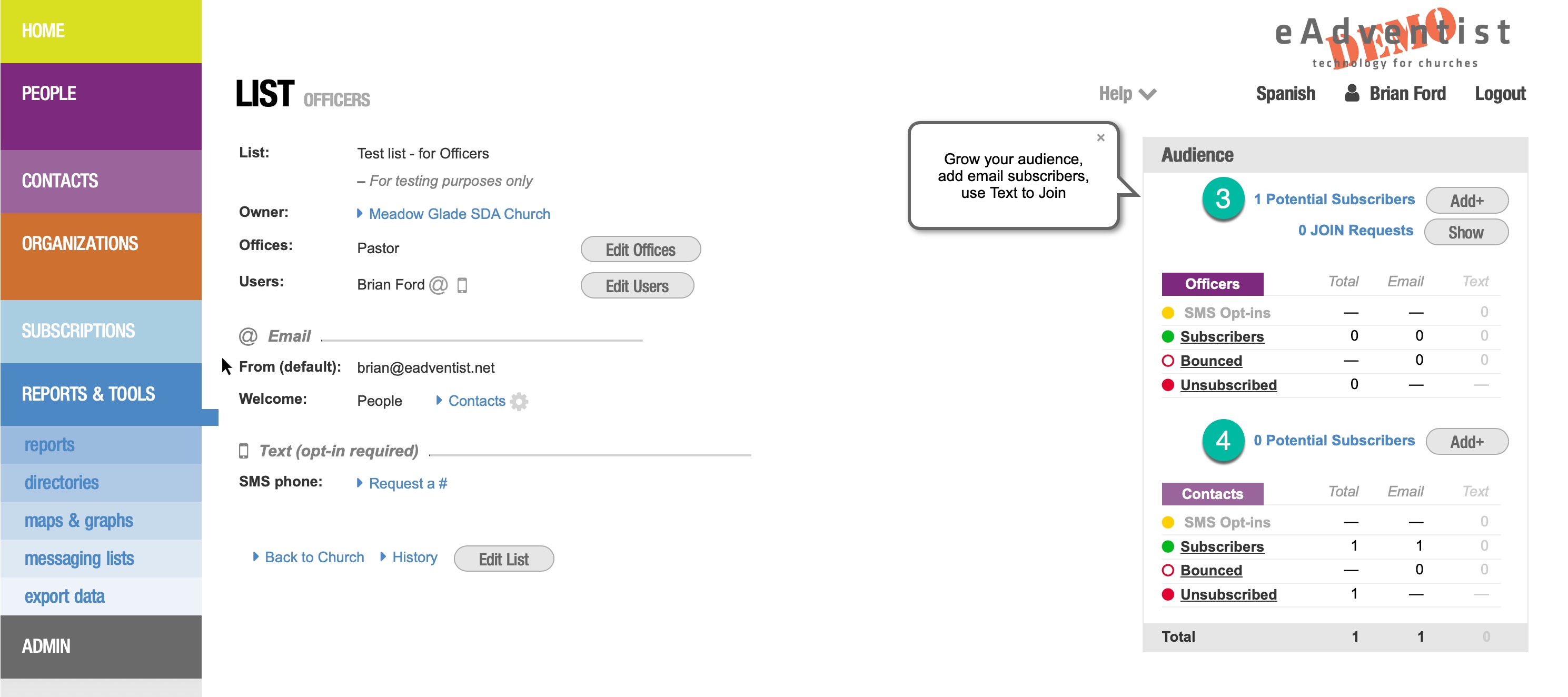
On the Messaging List page, the "Audience" box shows who is on your list. You can add Subscribers from both the Organizations (where Officers are listed) and Contacts sections of eAdventist.
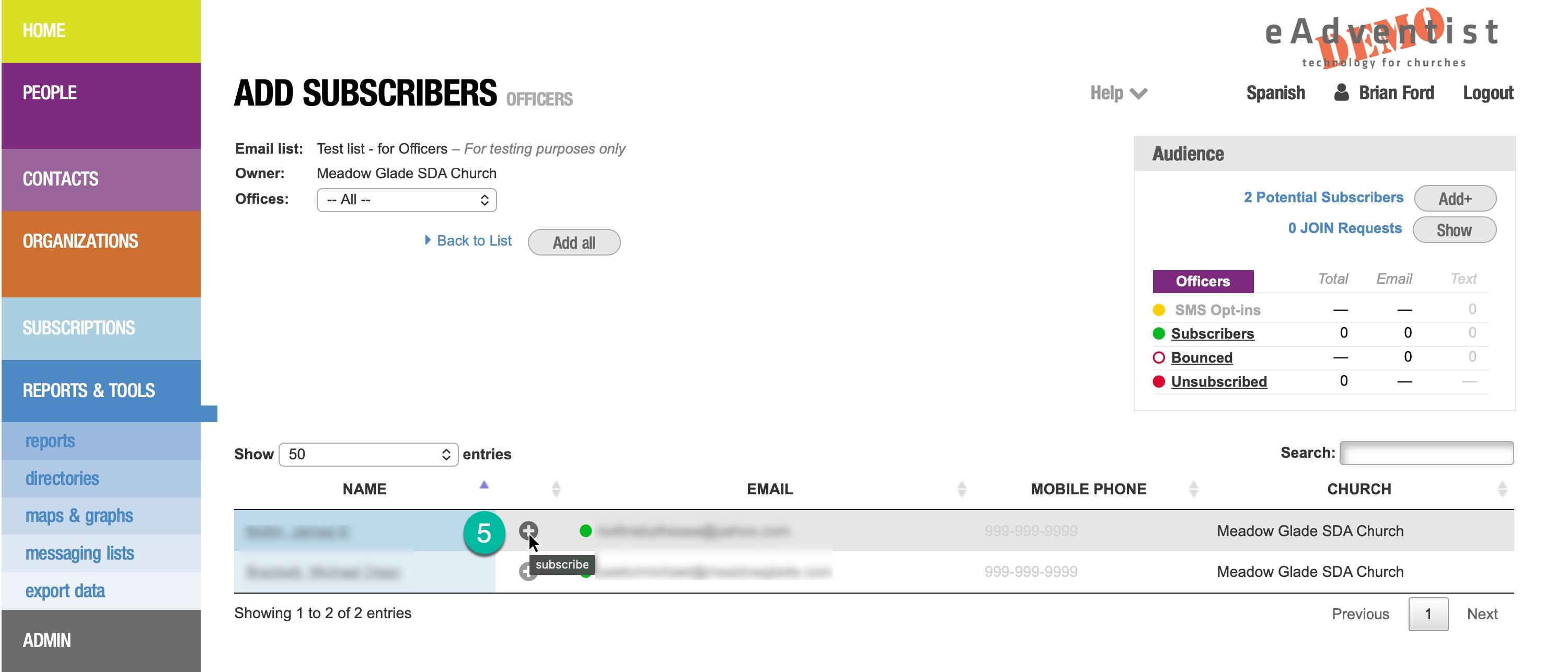
Click the "Add+" button to see the Officers in your audience who have email addresses or mobile phones.
TIP: To be a potential subscriber, a person must:
- hold one of the selected Offices (e.g. deacon)
- have an email address or mobile phone number entered
Click the "+" icons to add subscribers one at a time or click the "Add all" button.
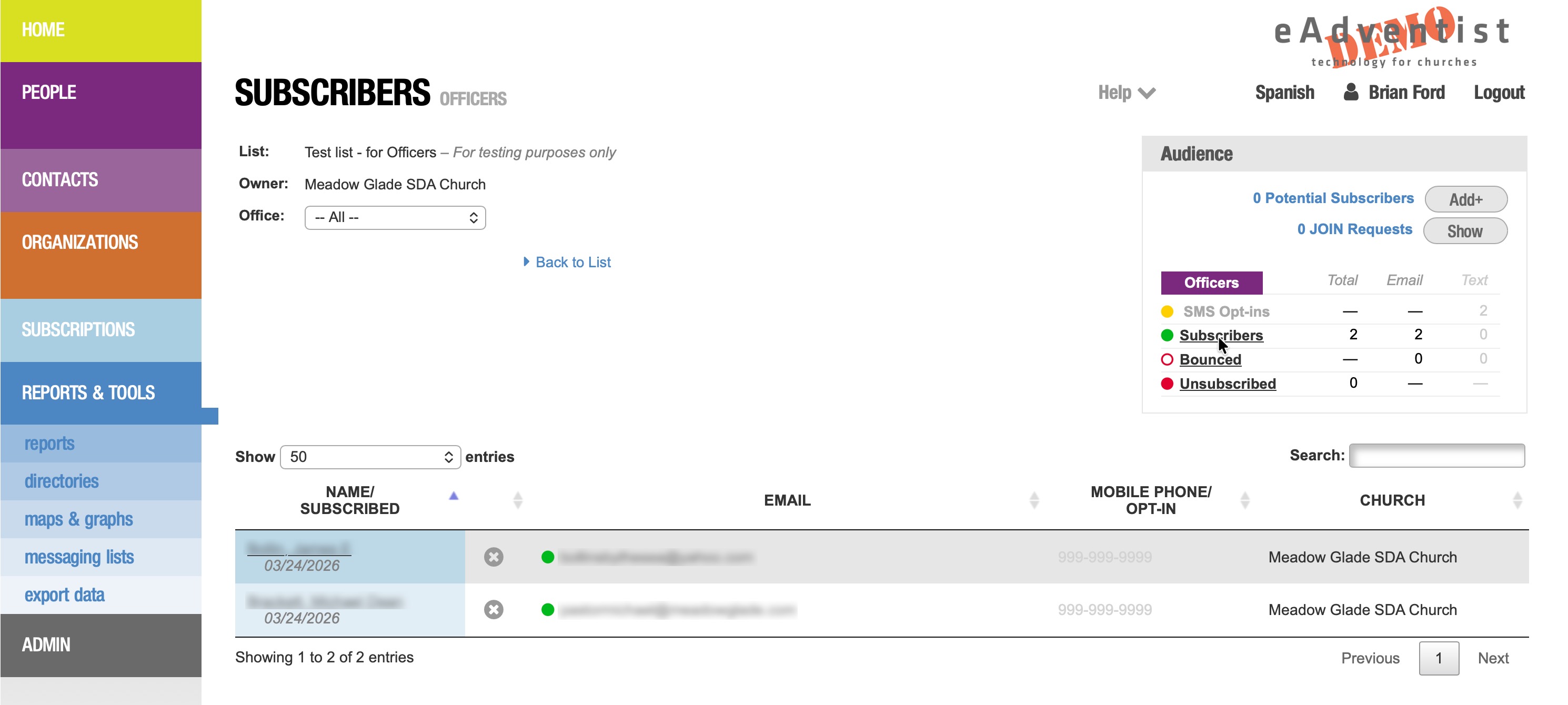
Click the "Subscribers" link to see the complete list of subscribers. You can unsubscribe them, if necessary, by clicking the "x" icons.
Click the "Bounced" link to see any subscribers that eAdventist has had problems delivering messages to.
Click the "Unsubscribed" link to show a list of Officers that have unsubscribed themselves or been unsubscribed by you.
4. Ready to use
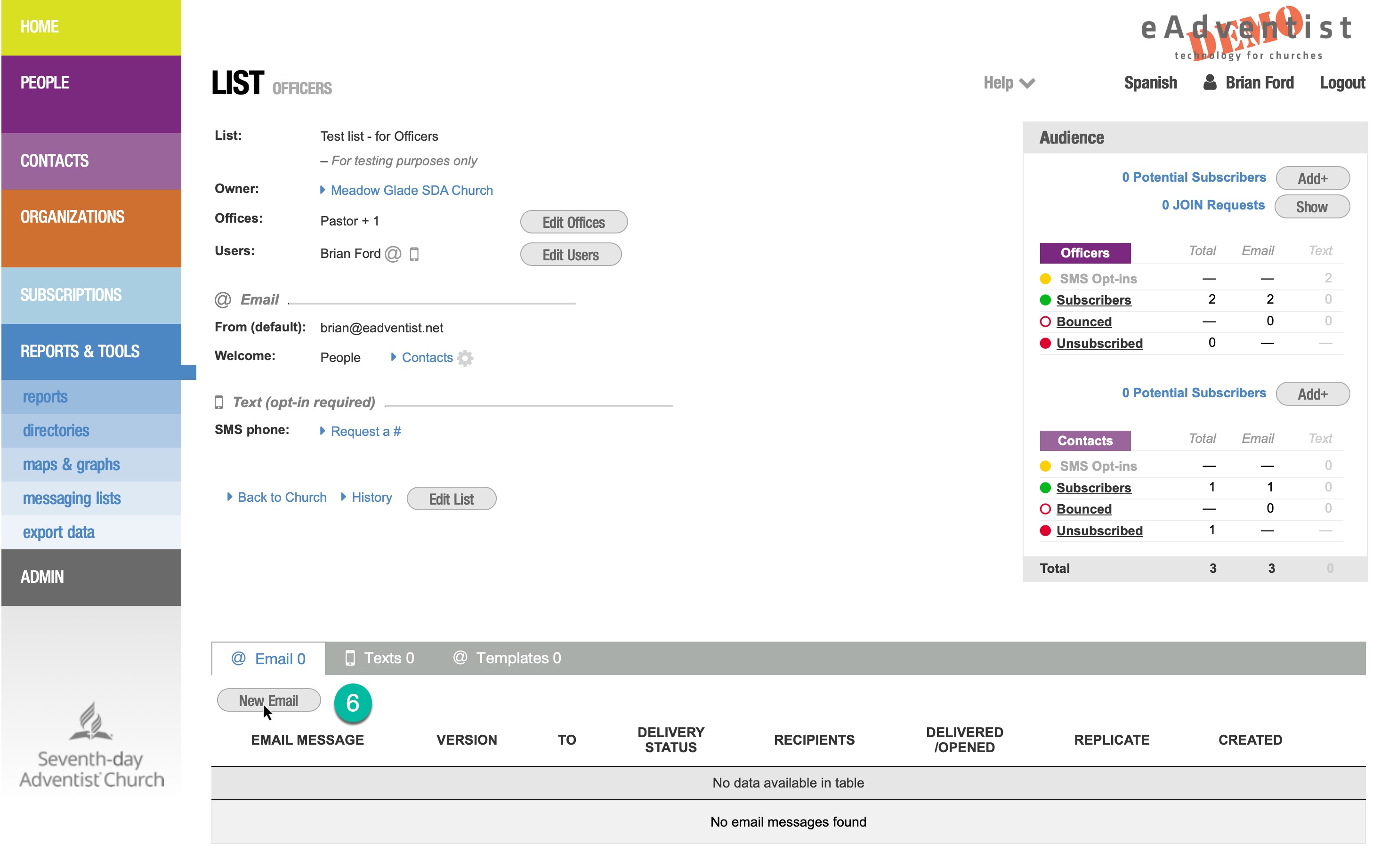
Just click the "New Email" button to create your first email message.
Adding other Users
You can allow other people in your church (or conference) to use the List. Click the "Edit Users" button to select and add them.

The "User" drop-down will show any people who have access to the Messaging List features. Select the person and click the "Add" button.

Click the "edit" icon to change the settings for a List User.

The Text to List option allows the person to send text messages from their phone to the List's SMS number - and eAdventist will automatically send it to the entire List.
WARNING: Be sure to disable Text to List if the person has auto-replies enabled on their phone, Car Play or smart watch - otherwise the replies will be sent to the entire List.
Choose the appropriate Permission level:
- List admin - can change anything on the LIst
- Sender - can manage Subscribers and send messages