
Email - Filtering your List
"Filtering" enables you to send any email (or text message) to a specific segment of your Subscribers - rather than to the entire List. You can select whether to include People (church family) or Contacts (church friends) and "filter" both groups using Tags.
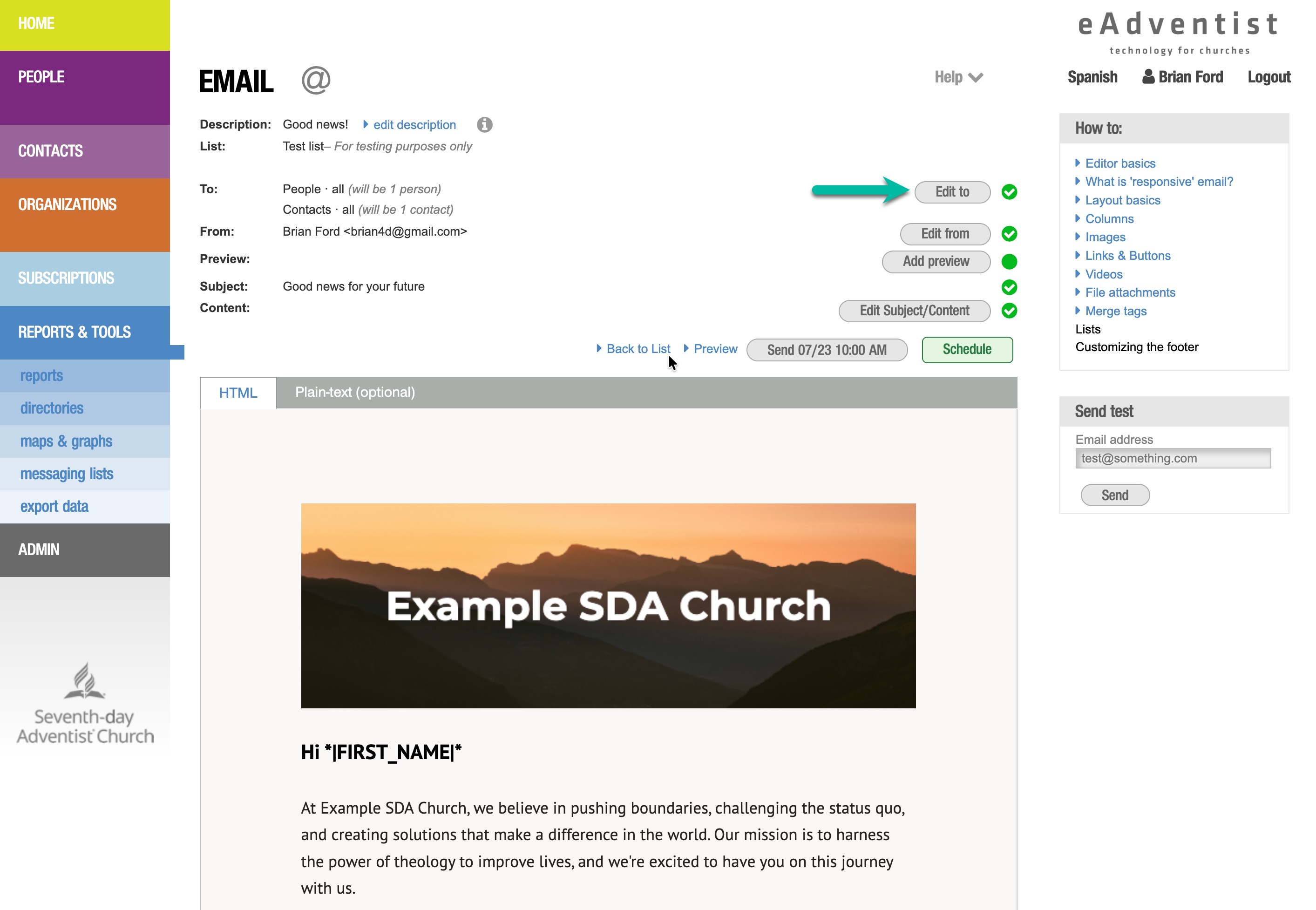
Step 1 - Change the "To" setting
Set the "filtering" on a Message by clicking the "Edit To" button.
Step 2 - Select filters
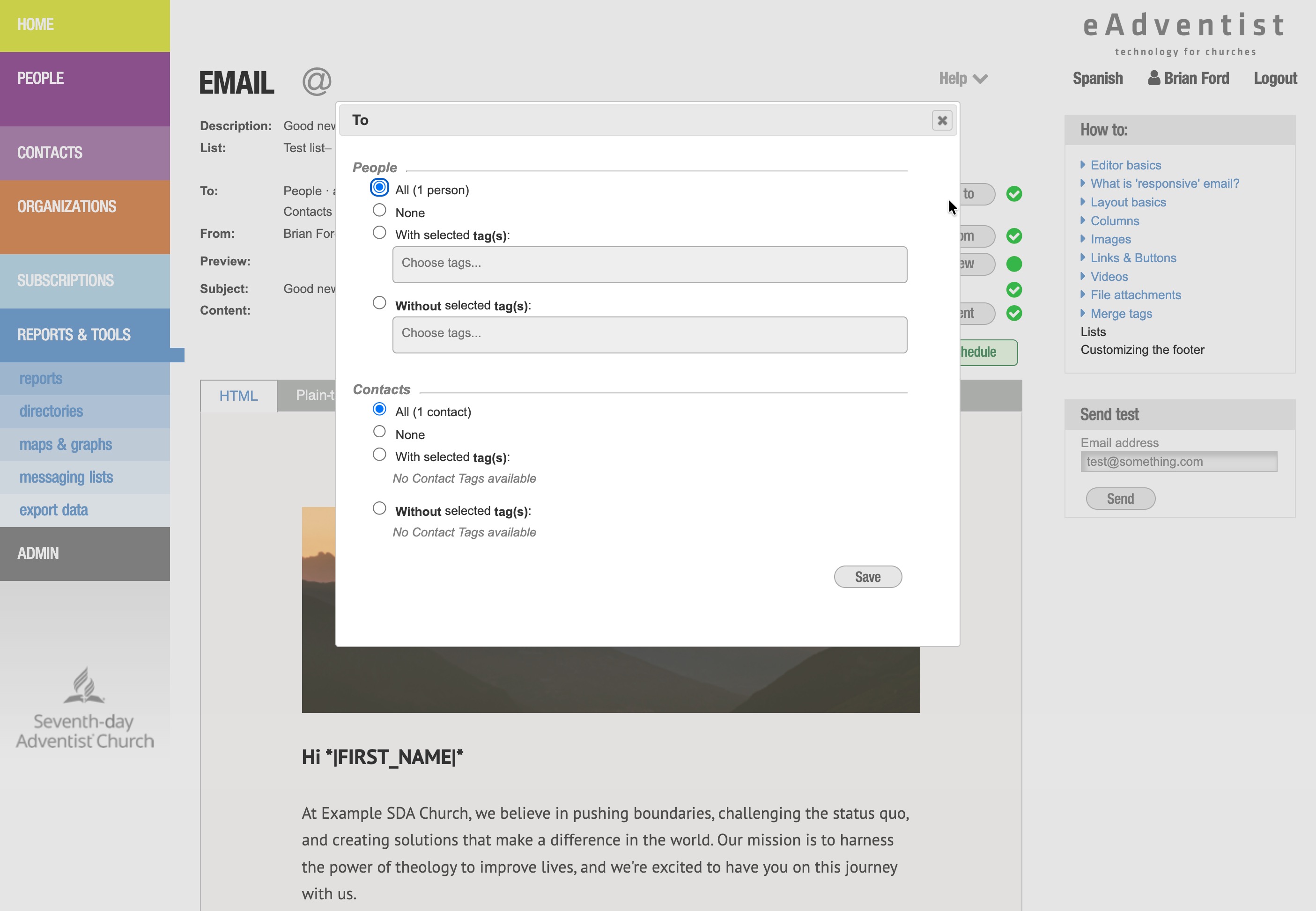
People vs Contacts
The People section of eAdventist is for keeping track of:
- your church members
- nonmembers who are family of members
- nonmembers who attend regularly
- (optional) member elsewhere who attend regularly and haven't transferred yet
The Contacts section is for keeping track of:
- visitors
- members elsewhere (e.g. Pathfinder parents)
- event attendees (e.g. VBS, health screening, seminars, evangelism series)
- community interests (e.g. civic leaders, Bible studies, Community Services customers)
This allows you to use a single list to connect with a wide variety of sub-groups in your congregation - without flooding the rest of your congregation's inboxes unnecessarily.
Filtering by Tags
Tags are a great way to identify sub-groups in your congregation and contacts. The "With selected tags" option will include subscribers who have any one of the tags you choose. The "Without selected" tags" option will only include subscribers who do not have any of the chosen tags.
Common Examples
Church Newsletter
Add members elsewhere that want to receive your newsletter as Contacts. Then create a "Newsletter" Tag (for Contacts) and tag these Contacts. When you send the Newsletter by email, select (a) all People and (b) Contacts with the "Newsletter Tag.
Small Groups
- Getting Started
Invite the entire congregation to sign up for a Small Group. Send an email invitaion by selecting All People. Include a "Sign up" button (or link) to your registration site or email address of coordinator.
- Create Small Groups
Create a Tag for each of the Small Groups in your congregation - for example "Small Group #1". Tag the People who have signed up for each group.
- Re-Invite Stragglers to Sign Up
As the sign-up period draws to a close, remind any stragglers by sending an email message to People "without selected tags" and select all the small group tags.
- Announcements for Groups
Send an email message to small group participants by selecting People "with selected tags" and choosing any or all of the small group tags.
- Rinse & Repeat
When a session of Small Groups ends, untag the People in each of the small groups and start the process again - invite everyone, tag people who sign up, re-invite stragglers, launch the groups.
Pathfinders Announcements
Create a "Pathfinders" tag for People and another for Contacts. Tag the Pathfinder parents in People (members) and Contacts (members elsewhere). When you send an Announcement by email, select (a) People with the "Pathfinders" tag and (b) Contacts with the "Pathfinders" tag.
Dinner with the Doctor
"Dinner with the Doctor" is creative outreach event that promotes healthy living by combining a meal and an interactive presentation. Naturally, it takes a coordinated team effort and an multi-pronged advertising plan to make this kind of event a success.
- Your Team
Create "DwtD team" tags for both People and Contacts and tag your team. Use Contacts for team members in the community or other churches. Send team announcements by selecting (a) People with the "DwtD" tag and (b) Contacts with the "DwtD" tag.
- Invitees
Create a "DwtD" tag for Contacts and tag past attendees and new interests. Send event announcements by selecting (a) all People and (b) Contacts with the "DwtD" tag.
PRO TIPS
- Use both email and SMS messaging. Email works best for announcements, invitations and registration information. SMS messages work best for reminders.
- Use "Send later" to schedule your messages for optimal impact.